Use this page
Change or delete a meal
Open a meal to change its portion, foods, name, photos or time, or delete it.
Quick actions
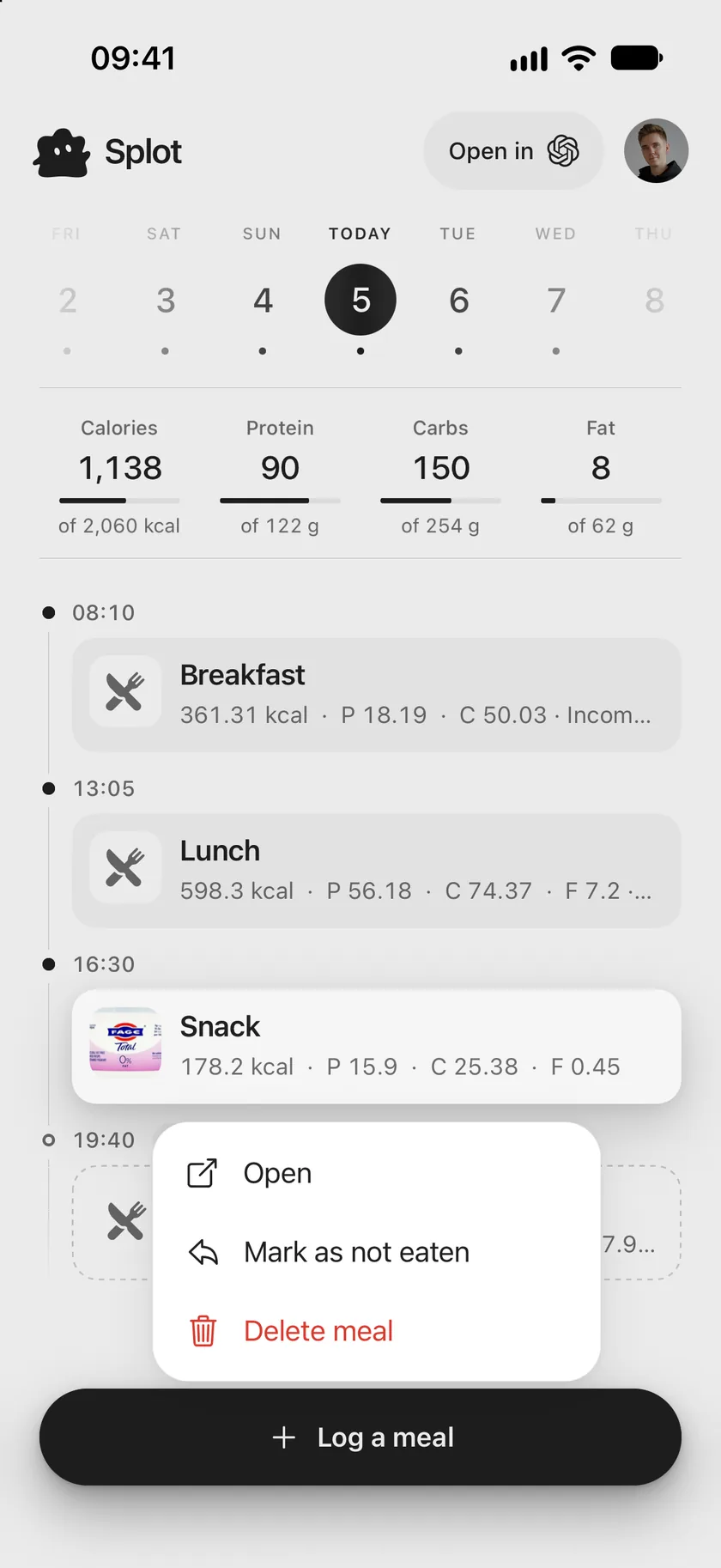
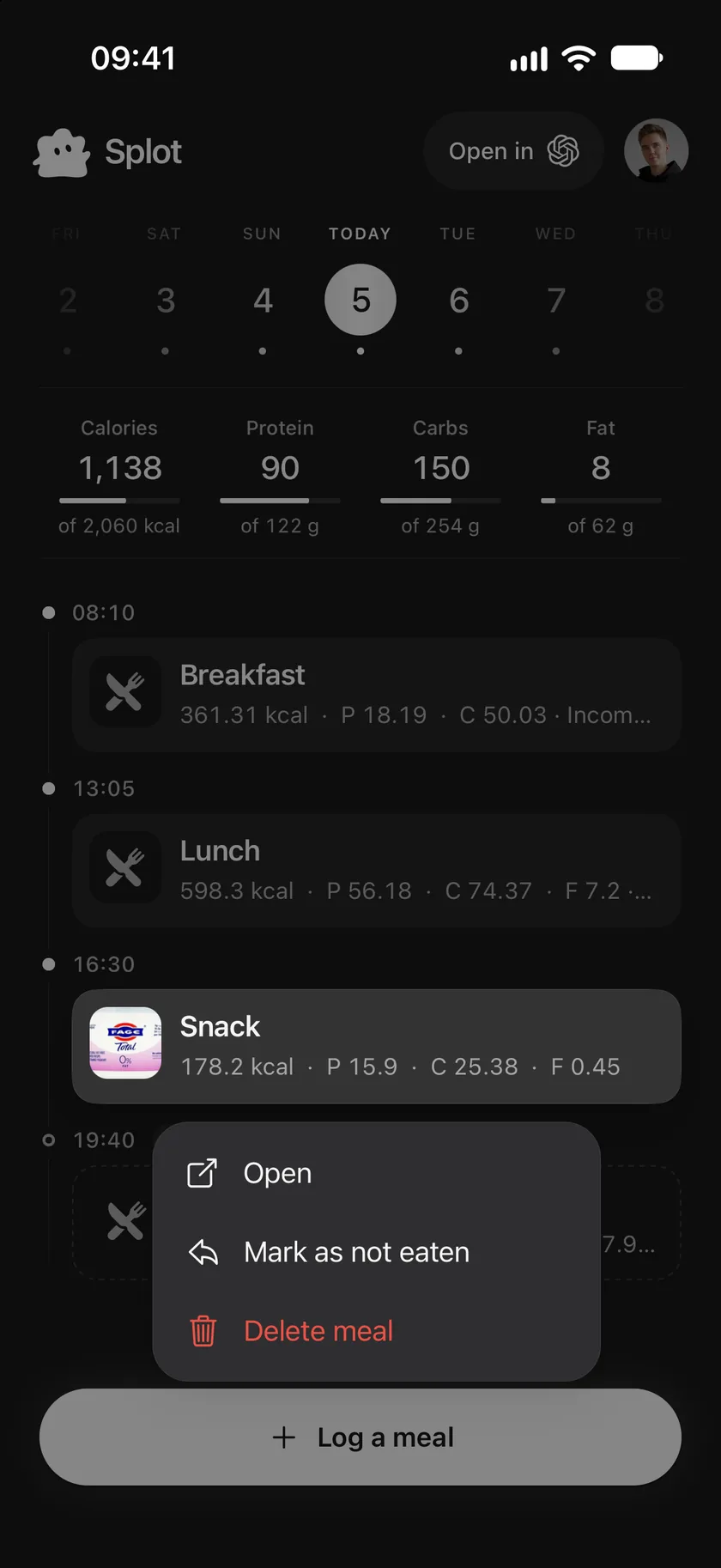
Section titled “Quick actions”Touch and hold a meal in the journal:
- Open opens the meal.
- Mark as eaten turns a plan into a meal you ate, once its time has come.
- Mark as not eaten turns a meal you ate back into a plan.
- Delete meal removes it from your journal.
Right after a change, Undo appears at the bottom of the screen for a few seconds.
Open a meal
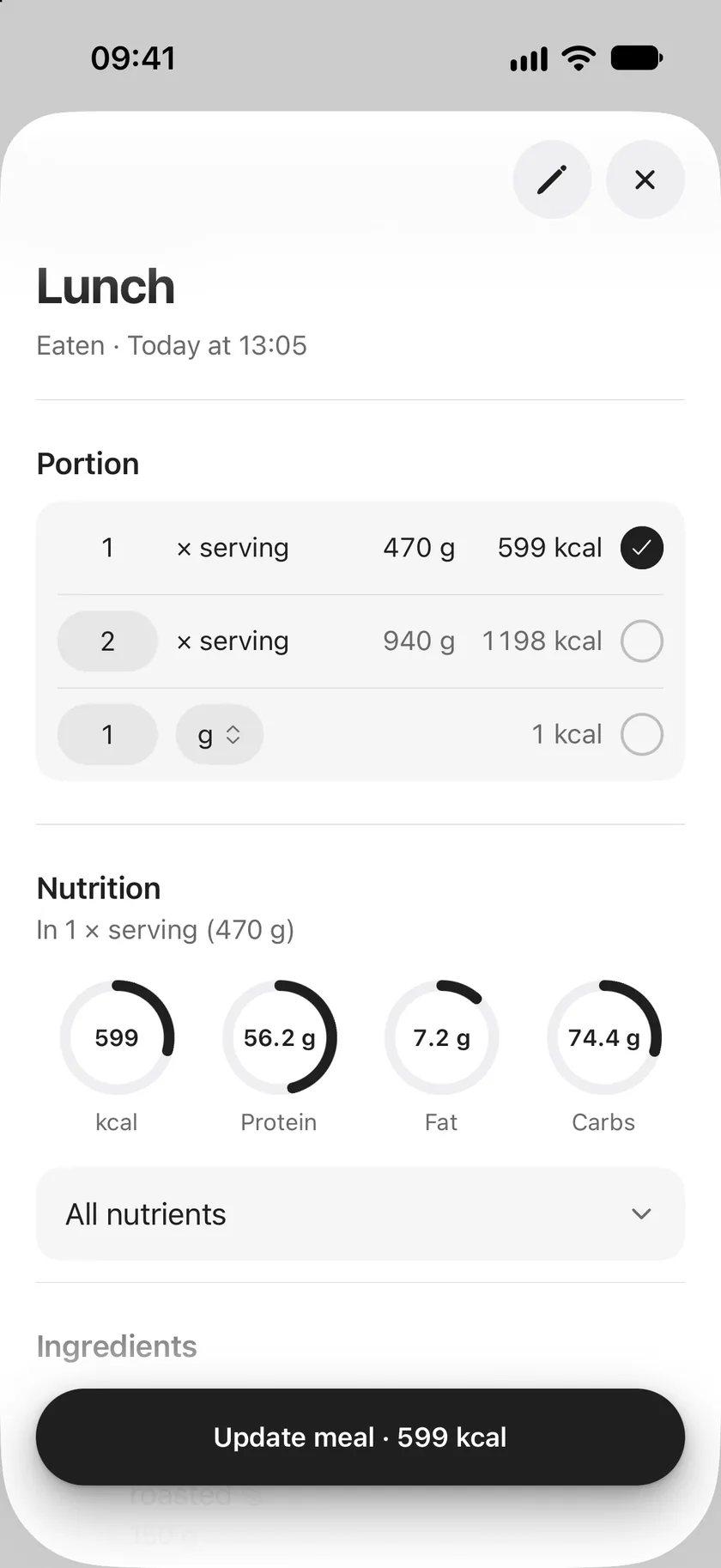
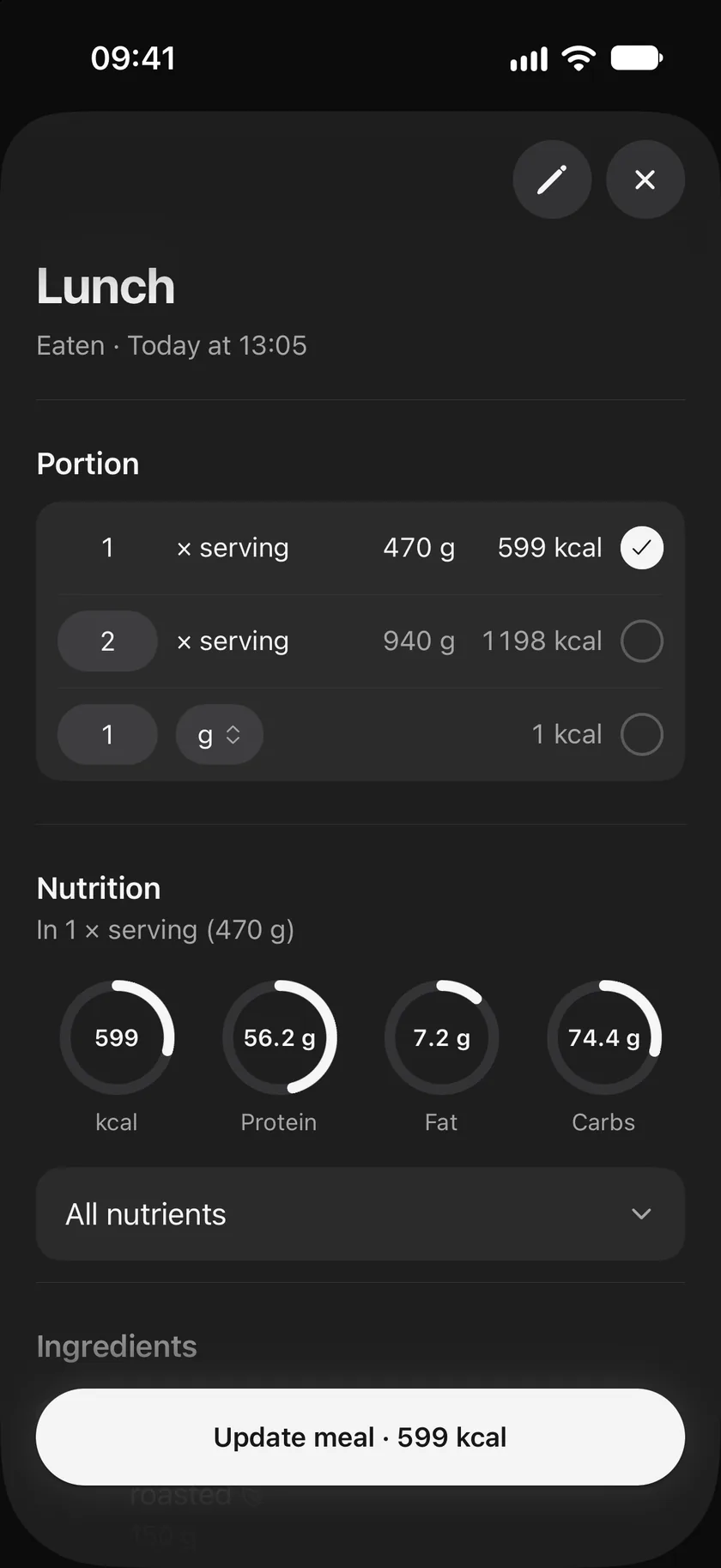
Section titled “Open a meal”Tap a meal to see it: whether it was eaten or planned and when, its Portion, its Nutrition and the foods in it.
- Portion changes the whole meal at once, for example to two servings when you had twice as much.
- All nutrients shows saturated fat, sugars, fibre and salt as well.
- Tap a food in the meal to change its own amount.
- The button at the bottom saves: Update meal, Update plan, or Mark as eaten for a plan whose time has come.
Edit a meal
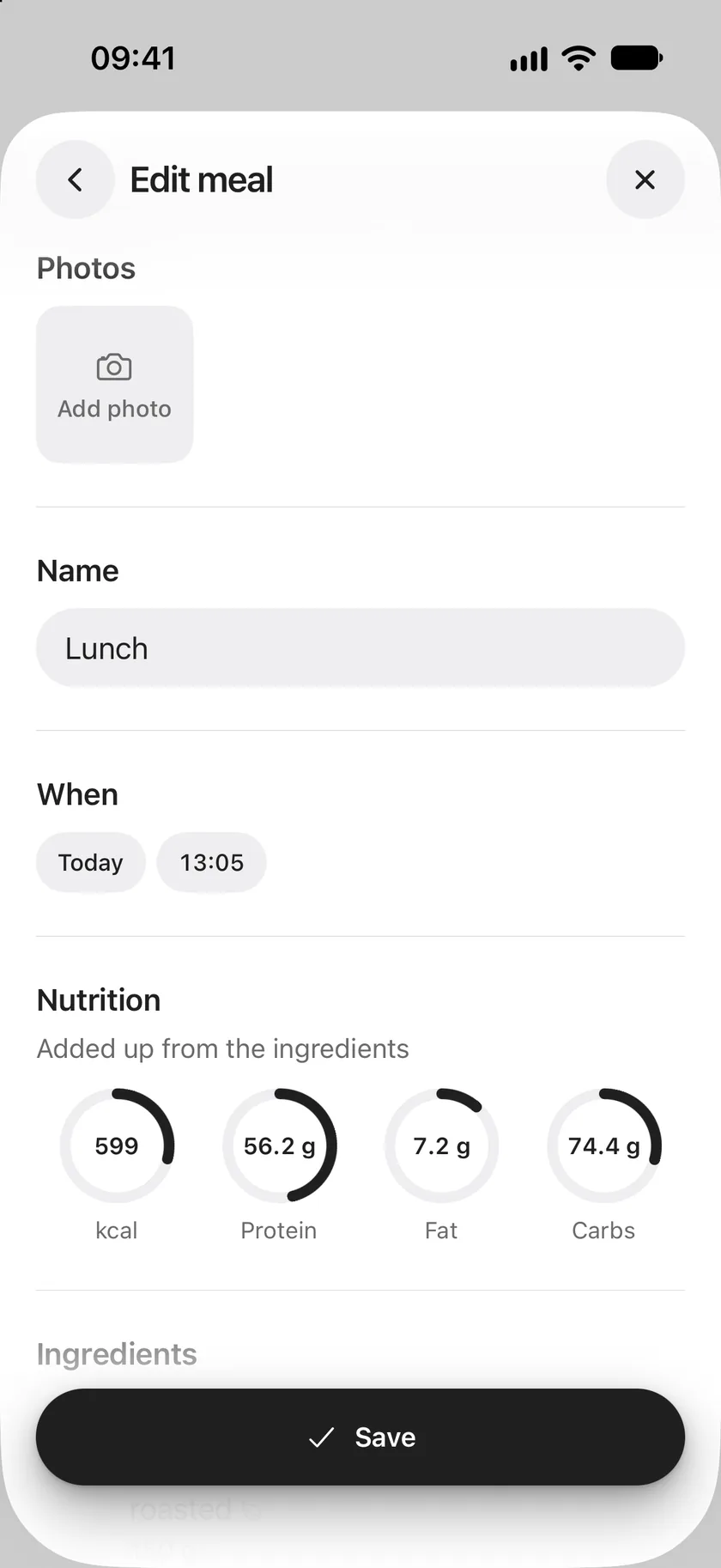
Section titled “Edit a meal”Open the meal and tap the pencil to change what it is:
- Photos: add or remove photos of the meal.
- Name: rename it, such as Breakfast or Pasta with tomatoes.
- When: change the day and time.
- Ingredients: add foods, remove them, or tap one to change its amount.
Nutrition is added up from the ingredients as you edit. Tap Save when you’re done.
Good to know
Section titled “Good to know”- Deleting a meal deletes its photos too. Use Undo straight away if you didn’t mean to.
- Changing a food later never changes meals you already logged: each meal keeps the food as it was.
Use this page
Last updated